
 TapToConnect
Connecting AI assistants and other software
Let Claude or your own software schedule posts and fetch statistics.
▶Watch the video: getting startedWith captionsWith an API key, other software can schedule posts and fetch numbers on behalf of your company. For example, you can tell an AI assistant: "Schedule a post on Instagram and Facebook next Tuesday at 9 am about our autumn menu".
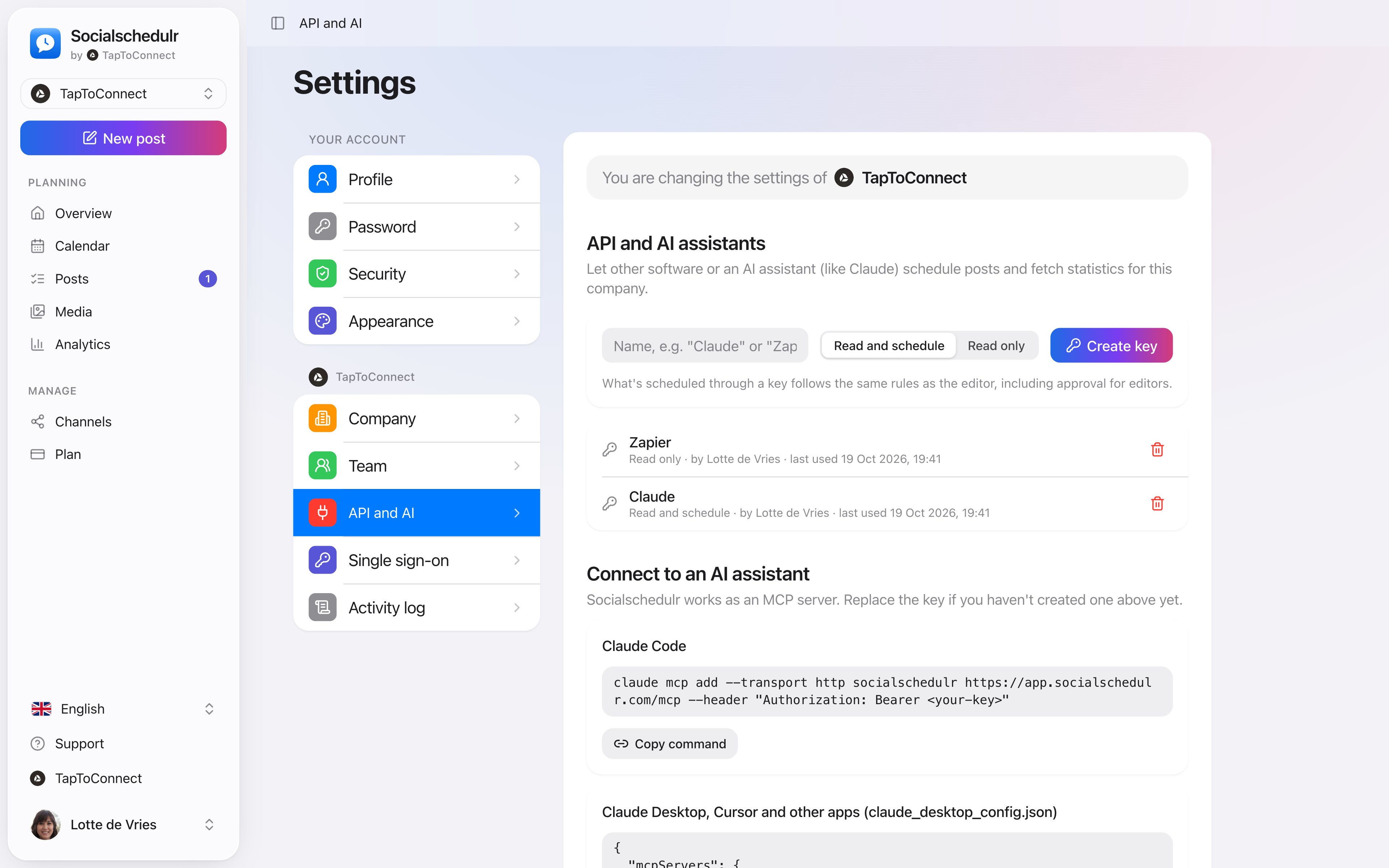
Creating a key
- Go to Settings → API and AI.
- Give the key a name, for example Claude.
- Choose Read and schedule or Read only.
- Click Create key and copy it right away. You only see it once.
Treat the key like a password. A key only works for the company you created it in. Only owners and admins can create keys.
Connecting an AI assistant
The same page has ready-made settings for Claude Code, Claude Desktop, Cursor and other apps that support MCP. Copy them and fill in your key. The assistant can then:
- view your channels and media library
- schedule posts, save them as drafts or delete them
- look up your statistics and best times
Everything that comes in through a key follows the same rules as the editor. If an editor needs approval for posts, the same applies to an AI assistant working with their key.
Your own integrations (REST API)
For developers, or for tools like Zapier and Make: the base address and the available endpoints are listed under Settings → API and AI. You can make up to 120 requests per minute per key.
Revoking a key
Click the trash icon next to the key. Integrations that use it stop working immediately.
Still stuck? Email us at info@taptoconnect.nl. A real person reads it and helps you out.