
 TapToConnect
Having posts approved
Have posts checked first by a colleague, a client or both, and discuss a post.
▶Watch the video: team and approvalWith captionsWith approval, posts by editors only go live after an admin or client has looked at them.
Turning it on
Go to Settings → Company and turn on Approve internally first.
How it works
- An editor creates a post and clicks Submit for approval.
- The post gets the status Pending approval. Admins see the number next to Posts in the sidebar and in the overview.
- An admin clicks Approve or Reject on the post (with a short explanation).
- Approved: the post is scheduled. If the scheduled moment has already passed, it goes live straight away.
- Rejected: the post goes back to draft, with the explanation attached.
Approval by a client
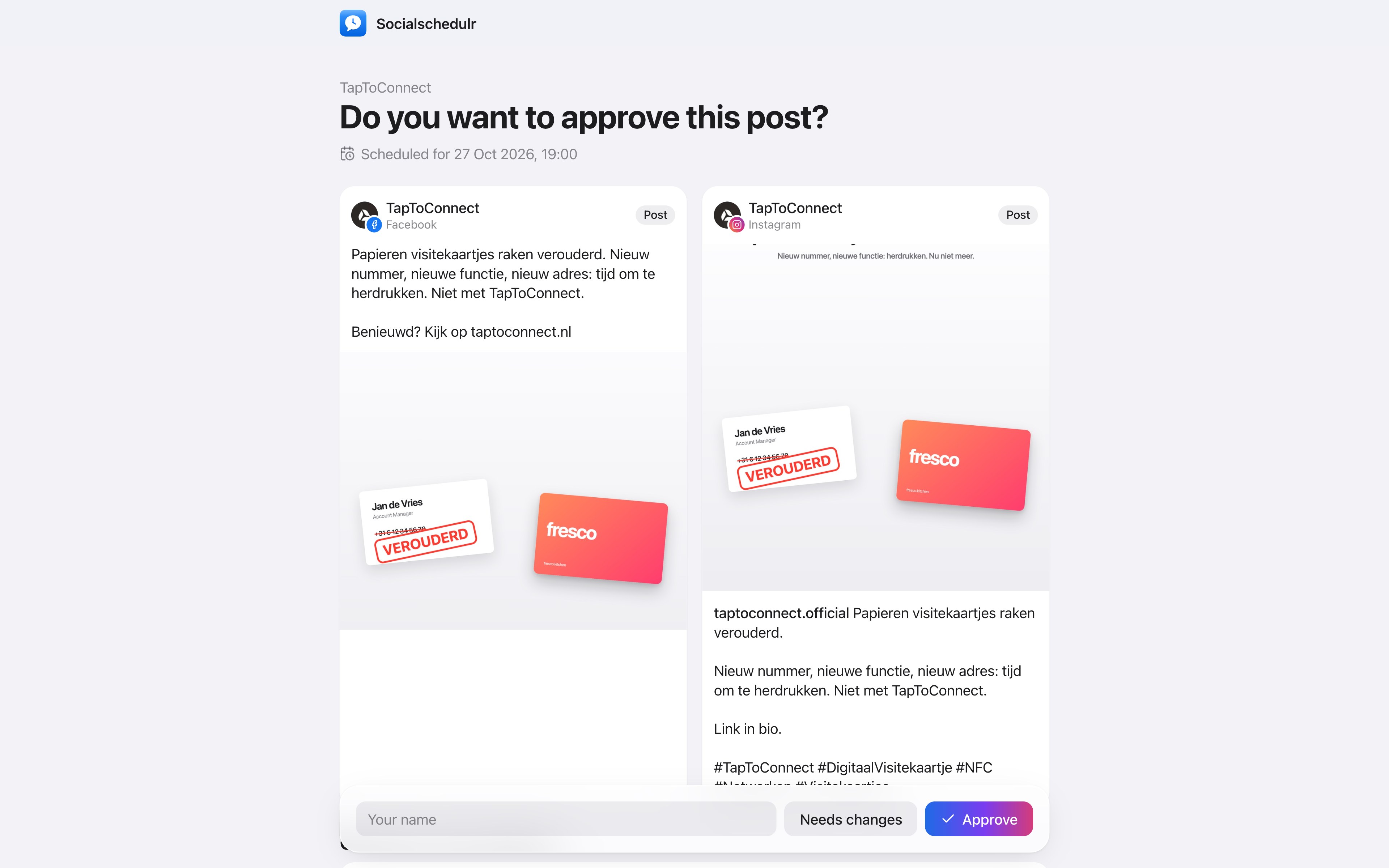
Working for a client? On a post that's pending approval, click Copy client link and send that link to your client. Your client sees a preview per channel, enters their name and chooses Approve or Needs changes. No account needed.
Posts by admins and the owner don't need approval, unless you use approval in two steps.
Approval in two steps: first a colleague, then the client
Want a post to be checked internally first and then by your client too? Under Settings → Company, also turn on Then have the client approve.
- An editor submits a post. It shows Waiting for an admin.
- An admin approves it. The post doesn't go live yet, but shows Waiting for the client.
- You send the client link. Only when the client approves is the post scheduled.
Posts by admins and the owner skip step 1 and go straight to the client. If the client opens the link too early, they see that the post is still being checked internally.
Has your client already approved it verbally or by email? Click Approve on behalf of client on the post.
Discussing a post
On the right side of the editor you find Discussion. There you write comments on a post, for example "Can the photo be lighter?".
- Comments are internal by default: only your team sees them.
- Turn on Visible to the client if the client may read the comment.
- Your client can also post a question or comment through the client link, without an account.
In the list of posts a speech bubble shows how many comments a post has.
Still stuck? Email us at info@taptoconnect.nl. A real person reads it and helps you out.