
 TapToConnect
Scheduling many posts at once (CSV)
Schedule dozens of posts in one go from Excel, Numbers or Google Sheets.
▶Watch the video: posts and calendarWith captions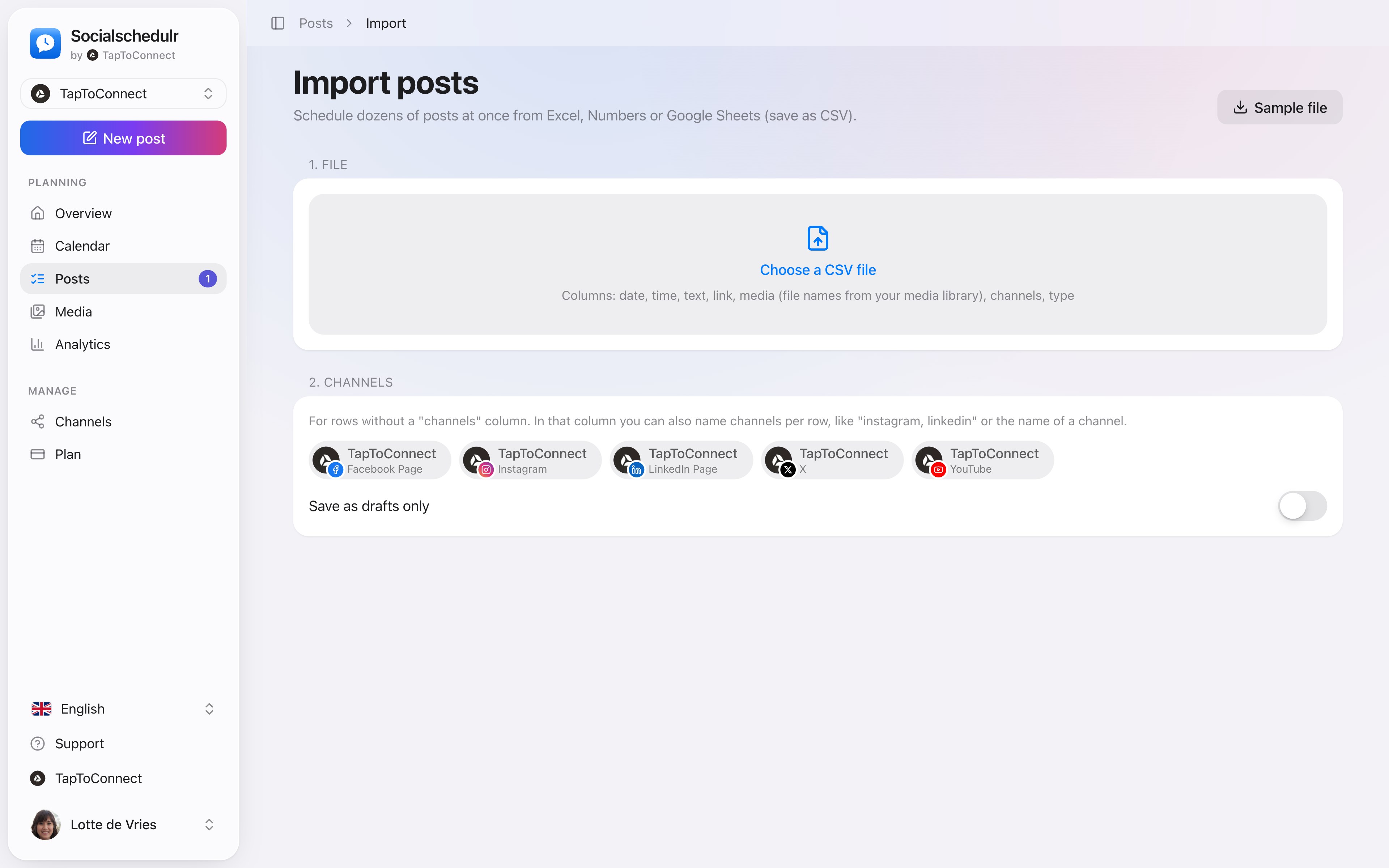
- Go to Posts and click Import CSV.
- Click Sample to download a sample file and fill it in with Excel, Numbers or Google Sheets.
- Save the file as CSV and choose it under File.
- Choose the channels for rows without their own channels.
- Check the posts in the table and click Schedule … posts.
The columns
| Column | What do you fill in? |
|---|---|
| datum (date) | For example 25-12-2026 or 2026-12-25 (required) |
| tijd (time) | For example 09:30 (empty = 09:00) |
| tekst (text) | The text of the post |
| link | Optional, a web address |
| media | Optional, file names from your media library, separated by commas |
| kanalen (channels) | Optional, for example instagram, linkedin or the name of a channel |
| soort (type) | Optional: post, reel, story, video or short |
The column headers can be in English too: date, time, text, link, media, channels and type.
Upload your photos and videos to Media first, so you can refer to them by name in the media column.
If a row isn't right, for example a date in the past or an Instagram post without a photo, nothing is imported and you see per row what's wrong. Fix the file and try again. You can import up to 200 posts at a time.
Does a post also go to YouTube or TikTok? Then the screen also asks whether the videos are made for kids (YouTube) and who can see them (TikTok). Want to check everything first? Turn on Save as drafts only.
Still stuck? Email us at info@taptoconnect.nl. A real person reads it and helps you out.