
 TapToConnect
Using the calendar
See at a glance what goes live when, with notes and holidays.
▶Watch the video: posts and calendarWith captionsIn the Calendar you see all scheduled and published posts per month. The colour shows the status:
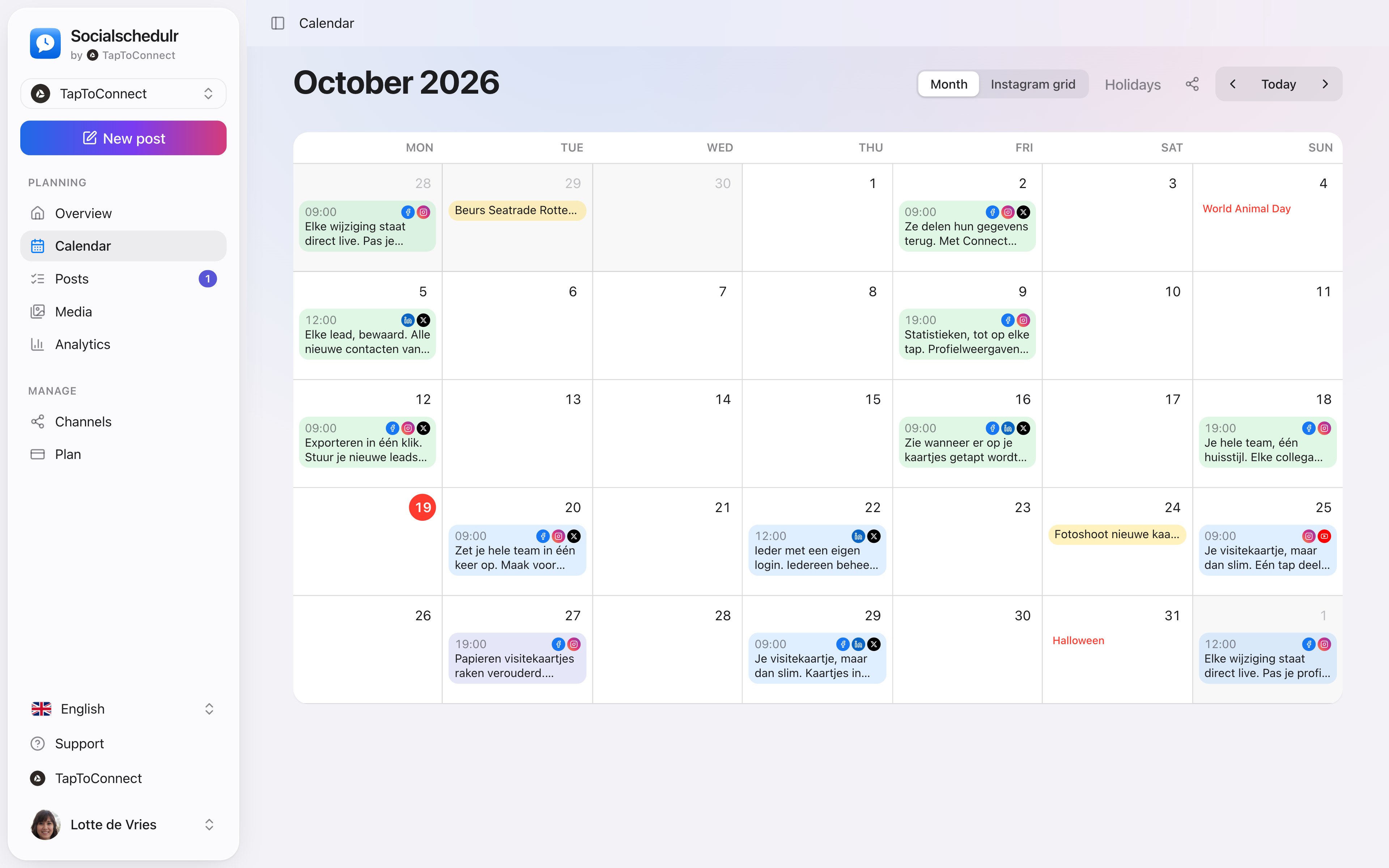
- Blue: scheduled
- Green: published
- Orange: publishing or partially failed
- Red: failed
- Grey: draft
Handy tips
- Click a post to edit it. That's possible as long as it hasn't been published.
- Hover over a day and click + to schedule a post on that day right away.
- Use the arrows at the top right to browse the months; Today brings you back.
Notes
Hover over a day and click the note icon. Write for example "Autumn sale starts" or "Shop closed". Notes appear in yellow in the calendar. Click one to change or delete it.
Holidays and special days
Click Holidays at the top right and choose NL, BE, Both or Off. The calendar then shows days like Valentine's Day, Mother's Day, King's Day, Black Friday and Sinterklaas, so you can prepare content in time.
Instagram grid
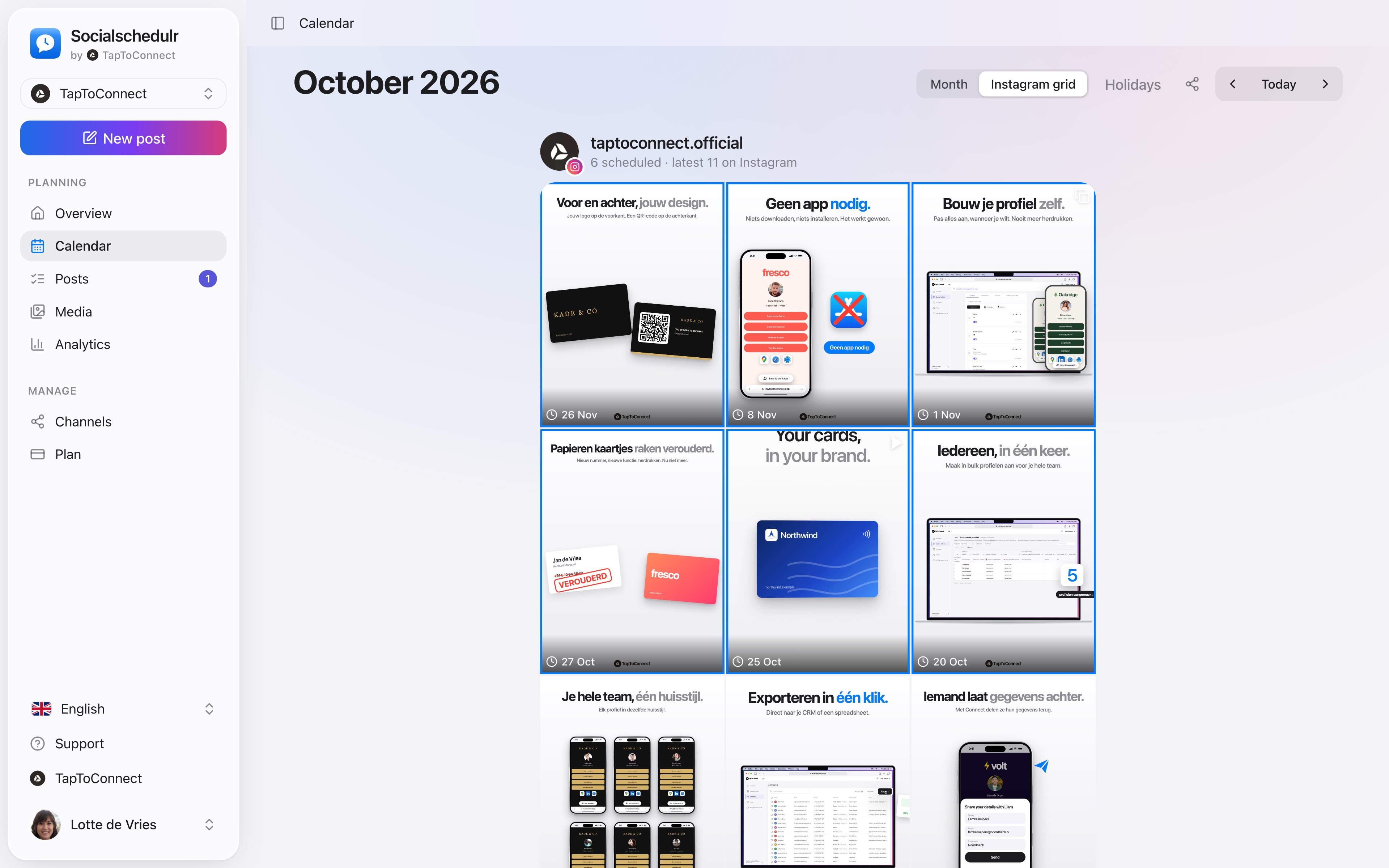
If you've connected Instagram, choose Instagram grid at the top. You see how your profile will look: the scheduled posts (outlined in blue) above your latest posts on Instagram. Click a scheduled post to edit it. Stories don't appear in the grid.
Sharing your schedule with a client
Still stuck? Email us at info@taptoconnect.nl. A real person reads it and helps you out.